Import Purchase Business Plan
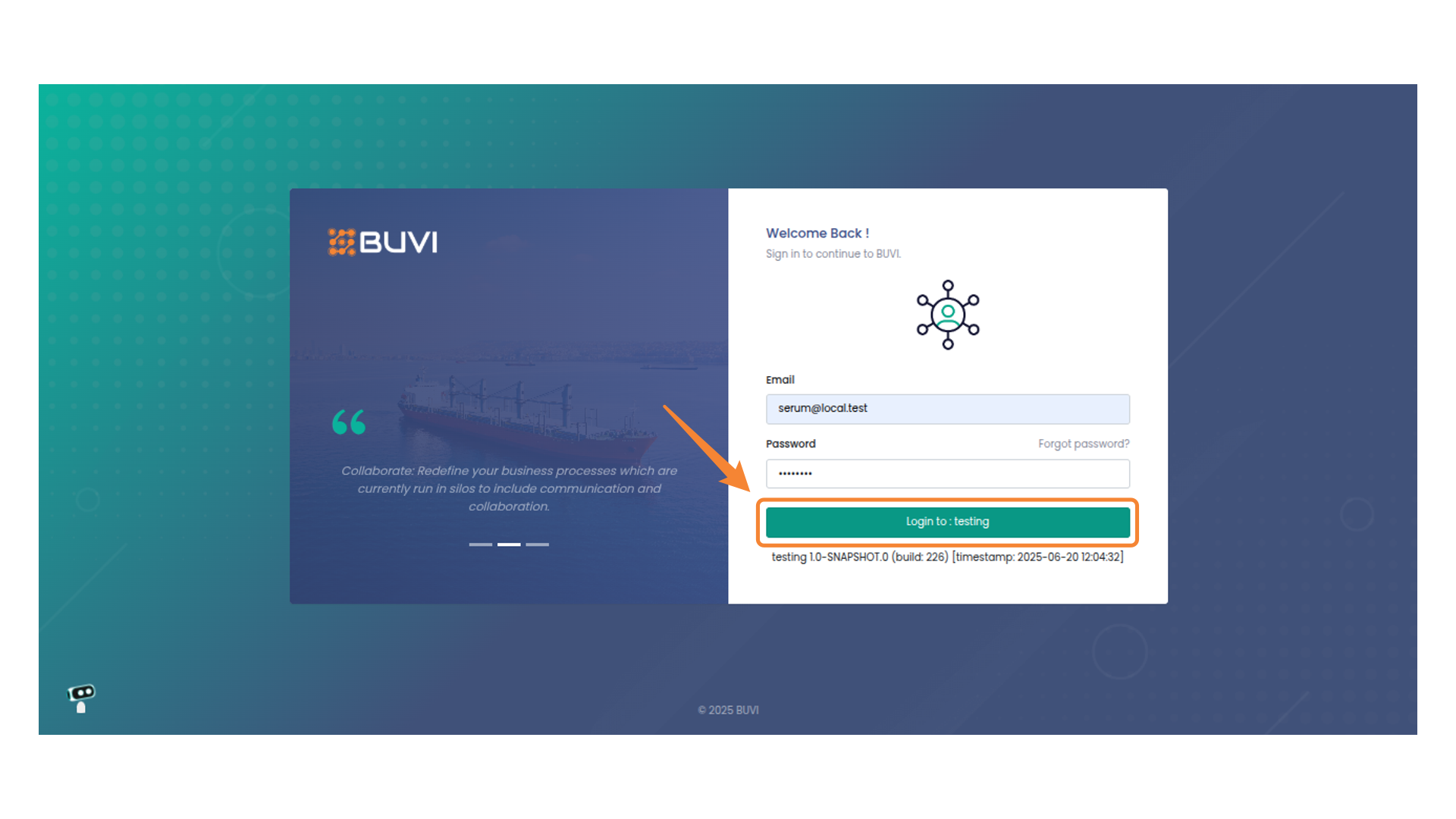
1. Log into application
Log into application
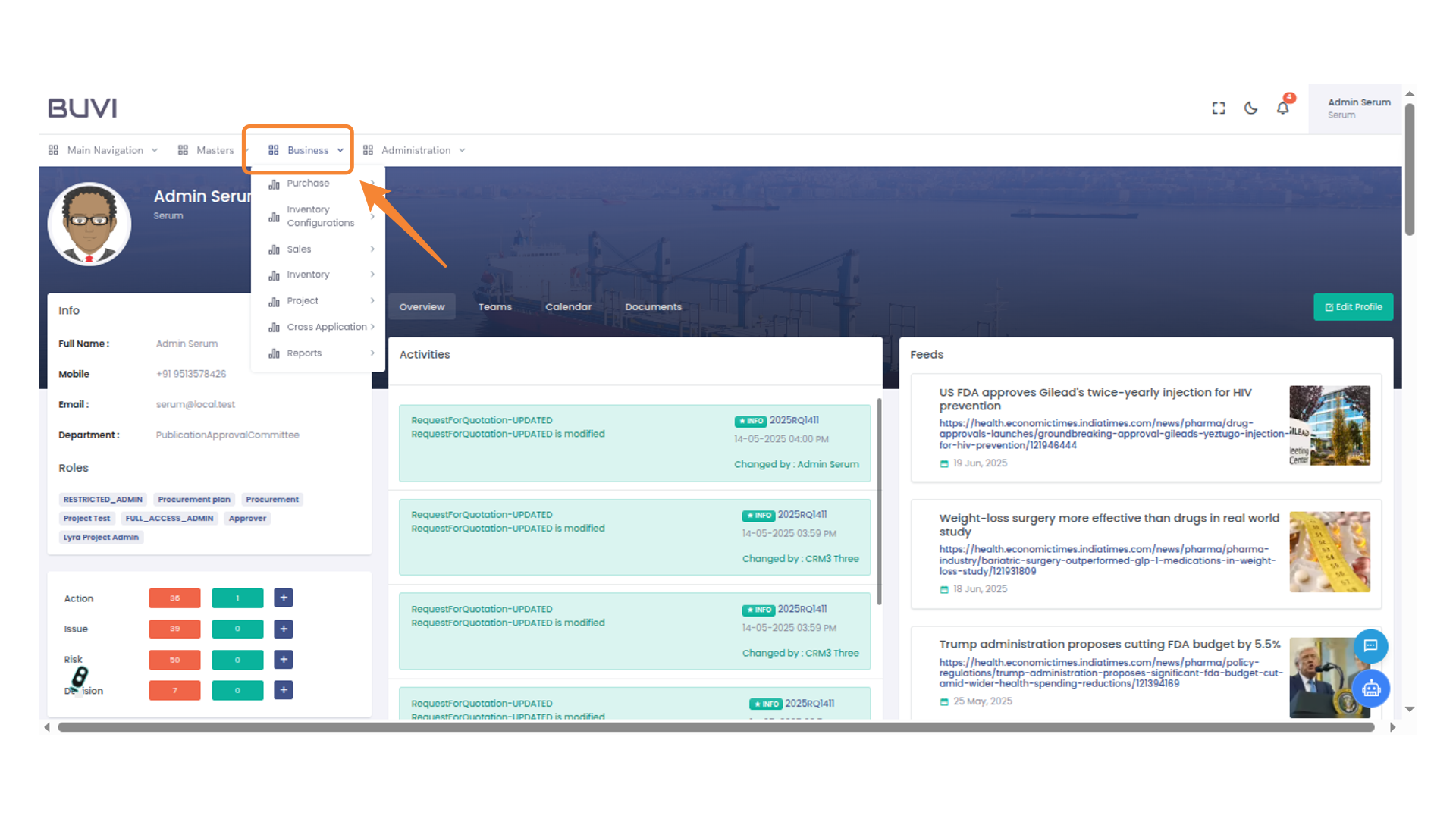
2. Navigate Business Menu Options
Go to Business menu
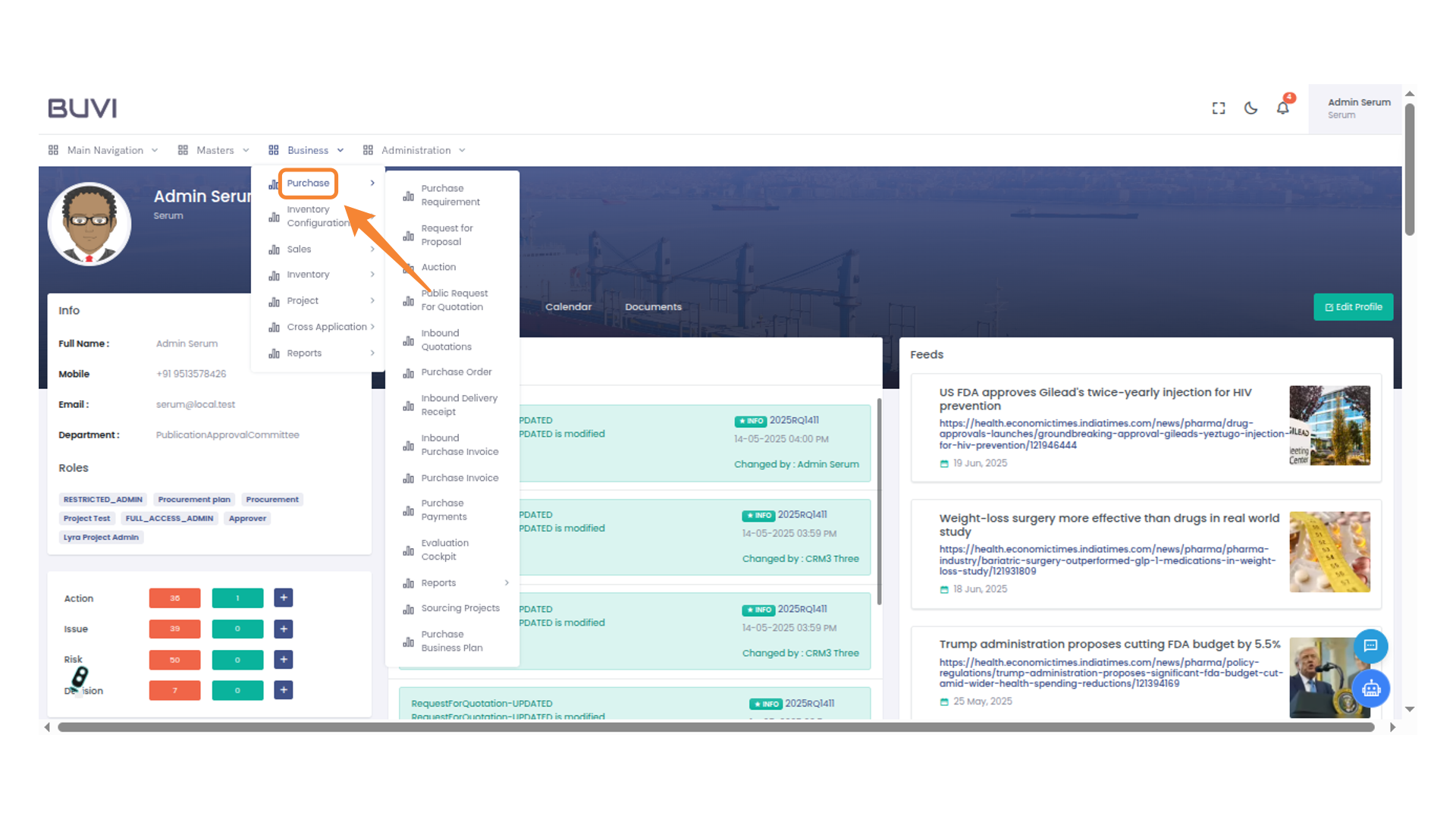
3. Navigate to Purchase Section
Go to purchase section
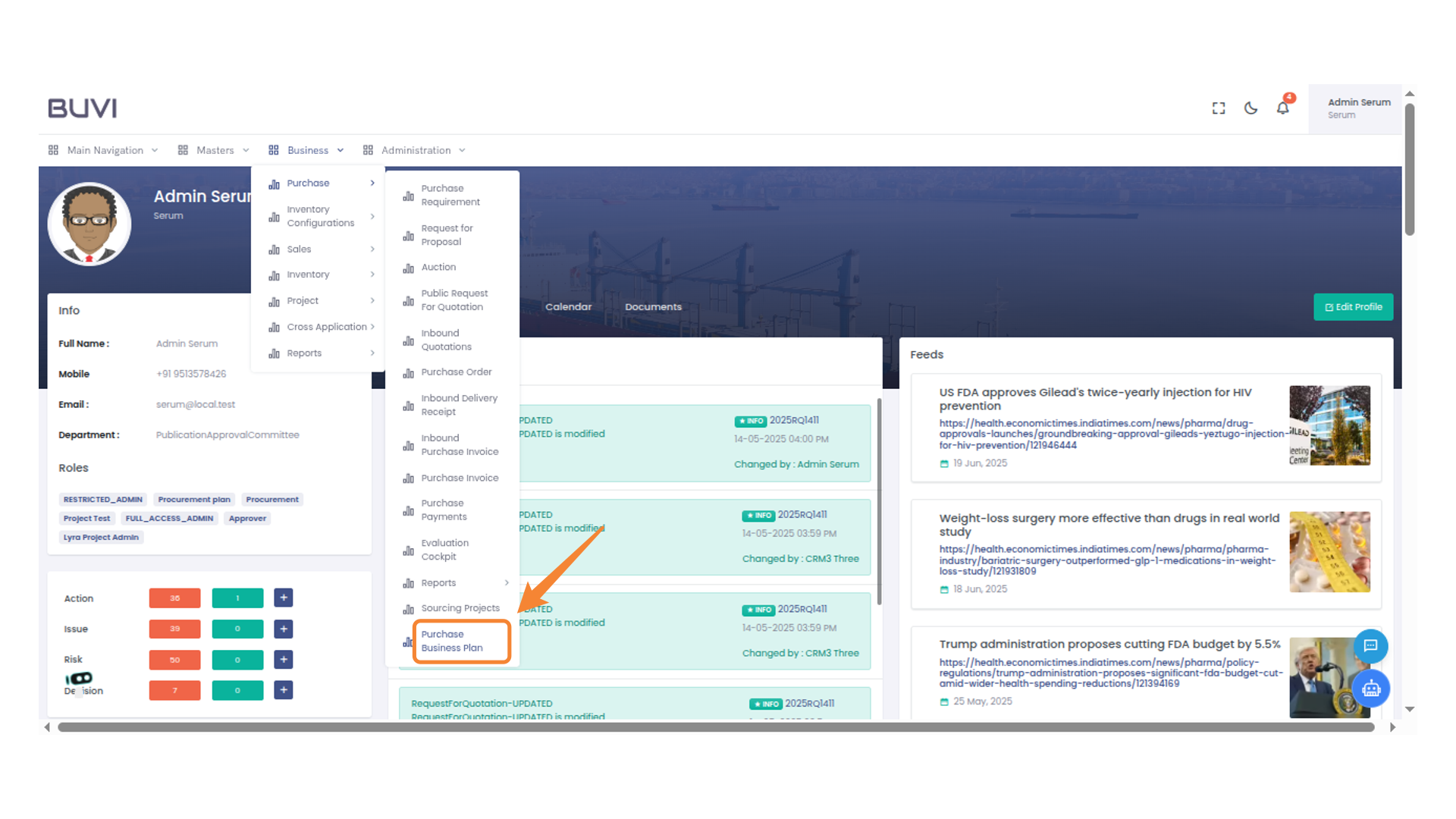
4. Access Purchase Business Plan
Select 'Purchase Business Plan'
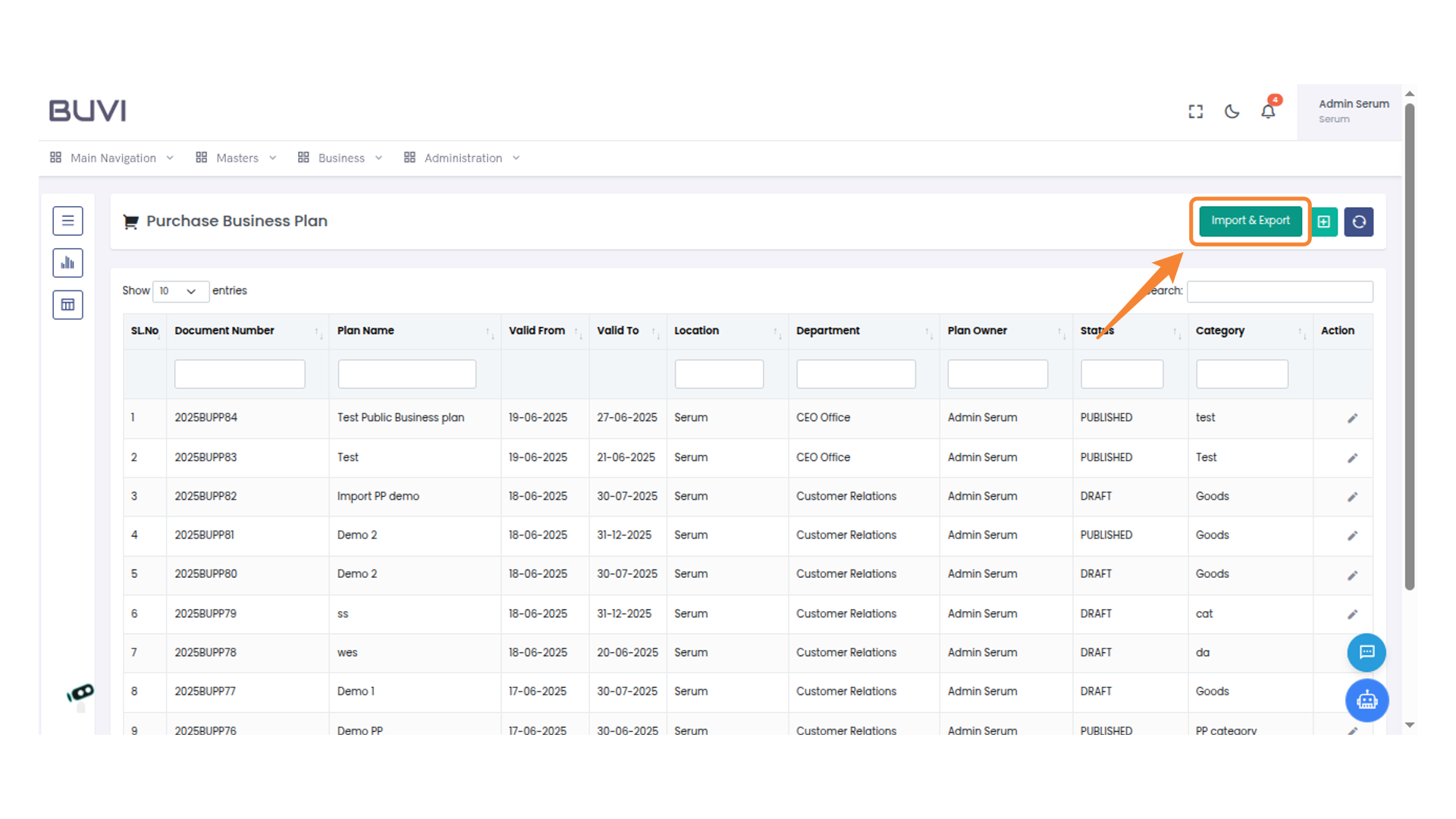
5. Initiate Import and Export Operations
Click the 'Import & Export' button to begin data import and export procedures.
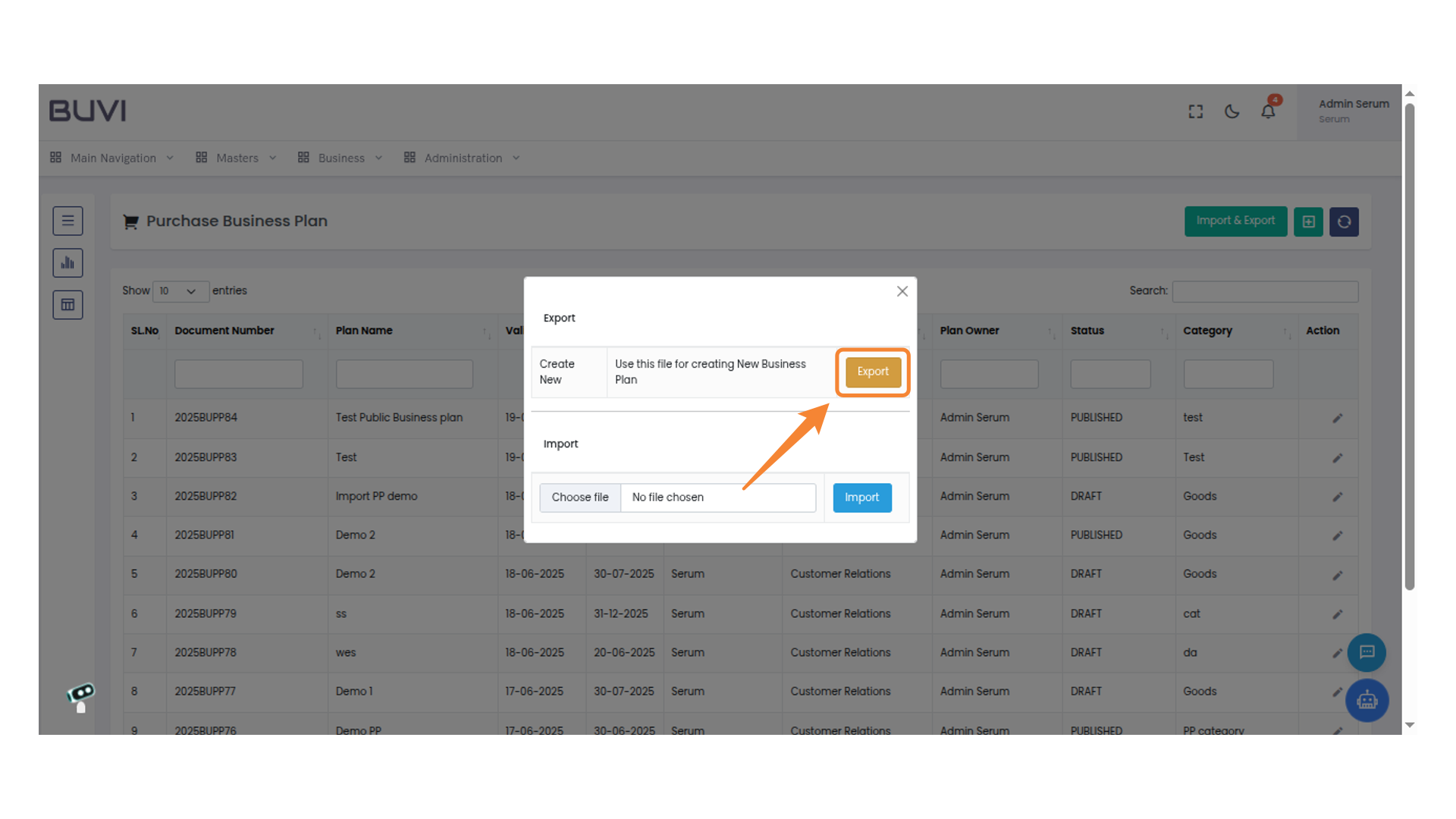
6. Export Business Plan
Click the Export button to initiate the process of creating a new business plan.
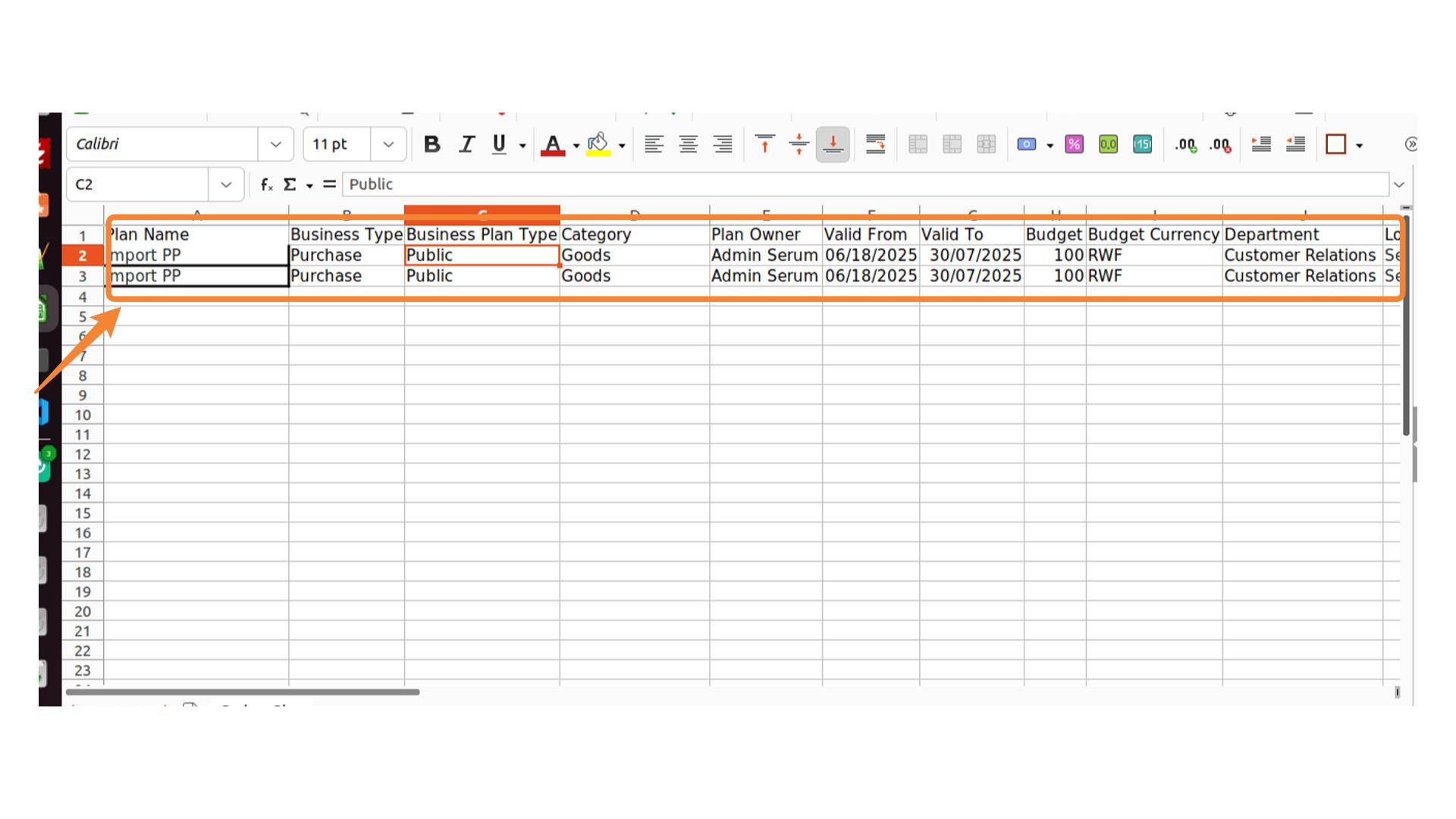
7. Enter details
Enter details
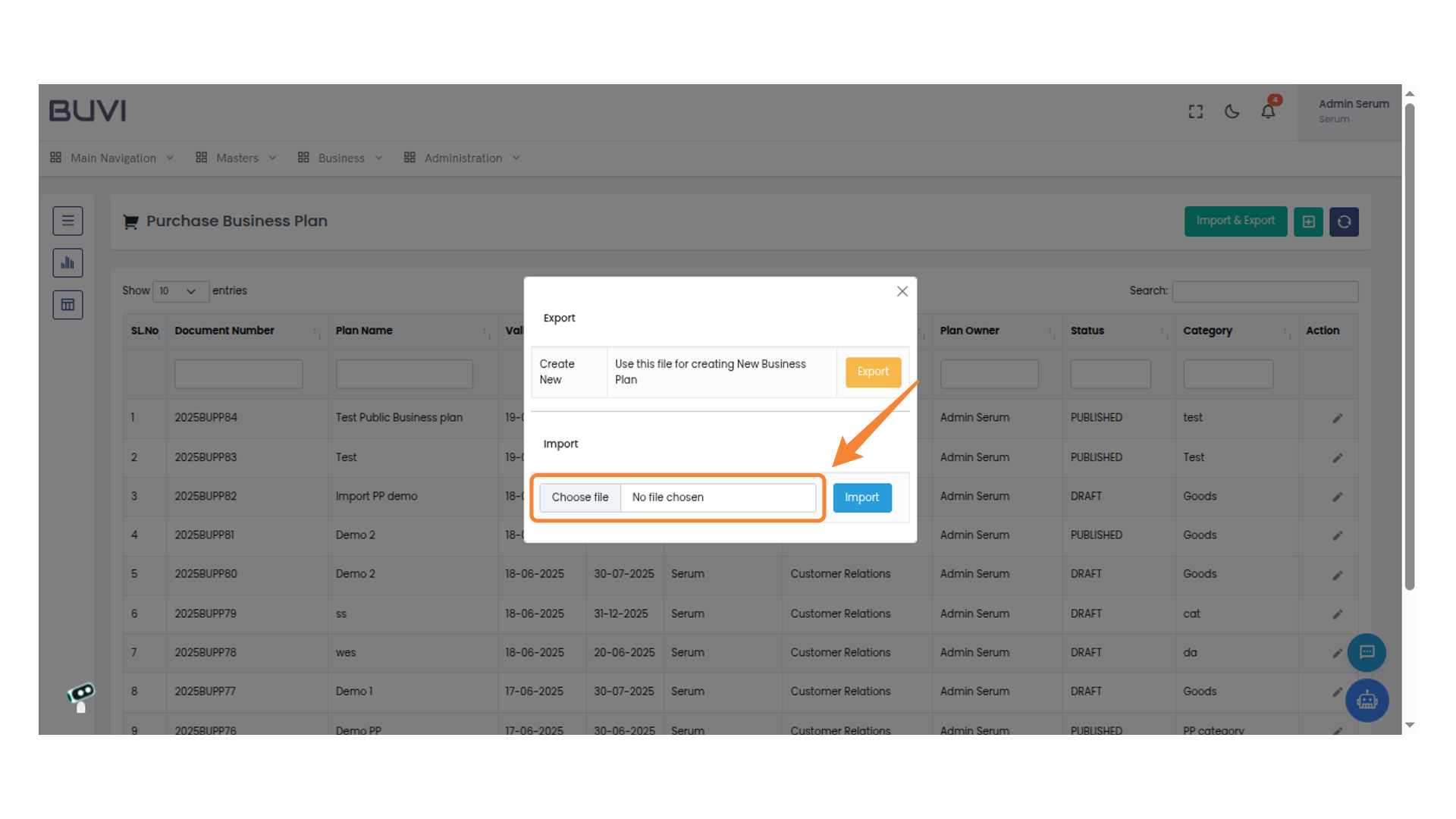
8. Initiate File Selection for Import
Click 'Choose file' to begin selecting a file for import.
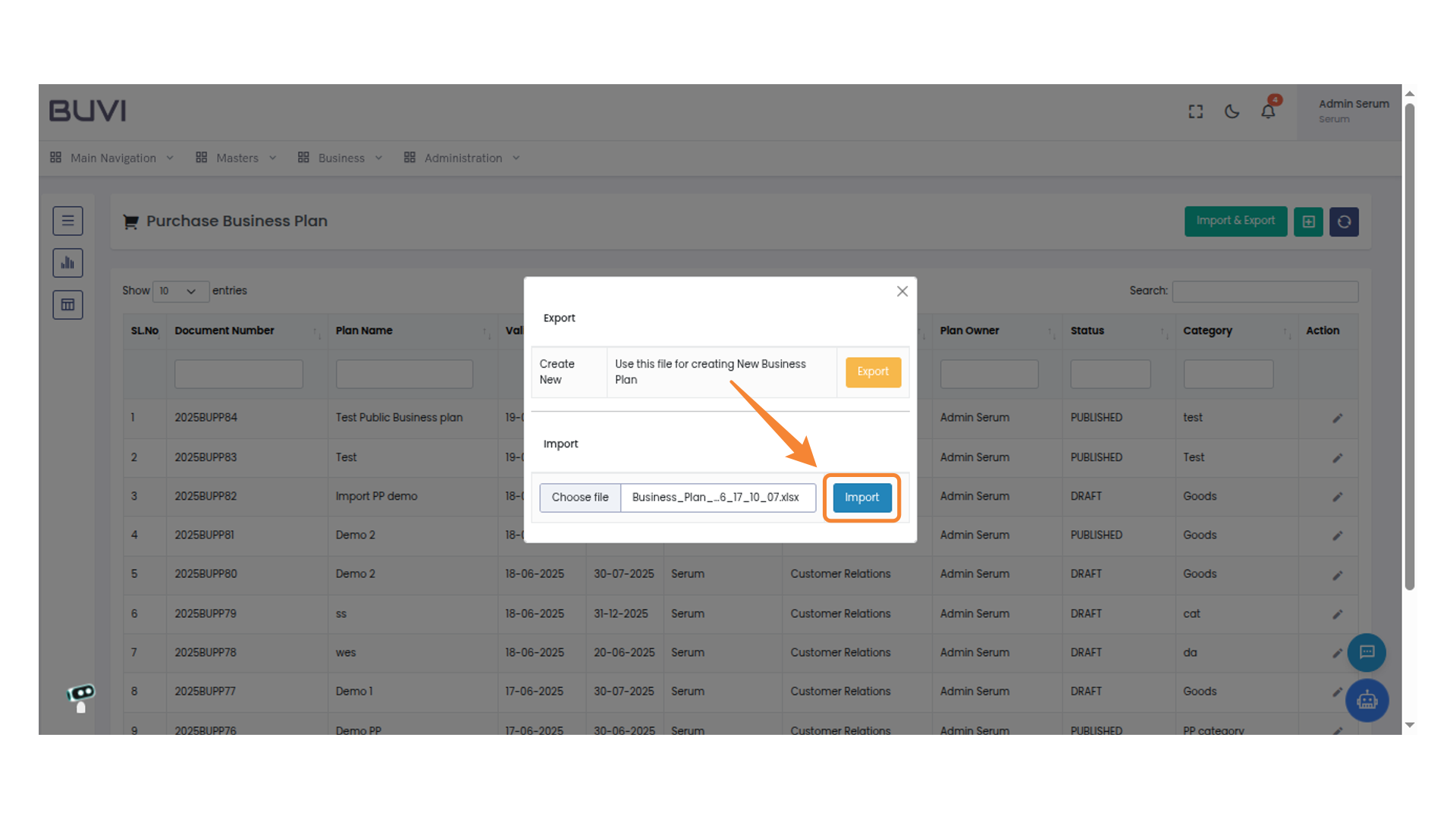
9. Complete the Import Process
Click the 'Import' button to initiate the file upload process for the selected business plan file.
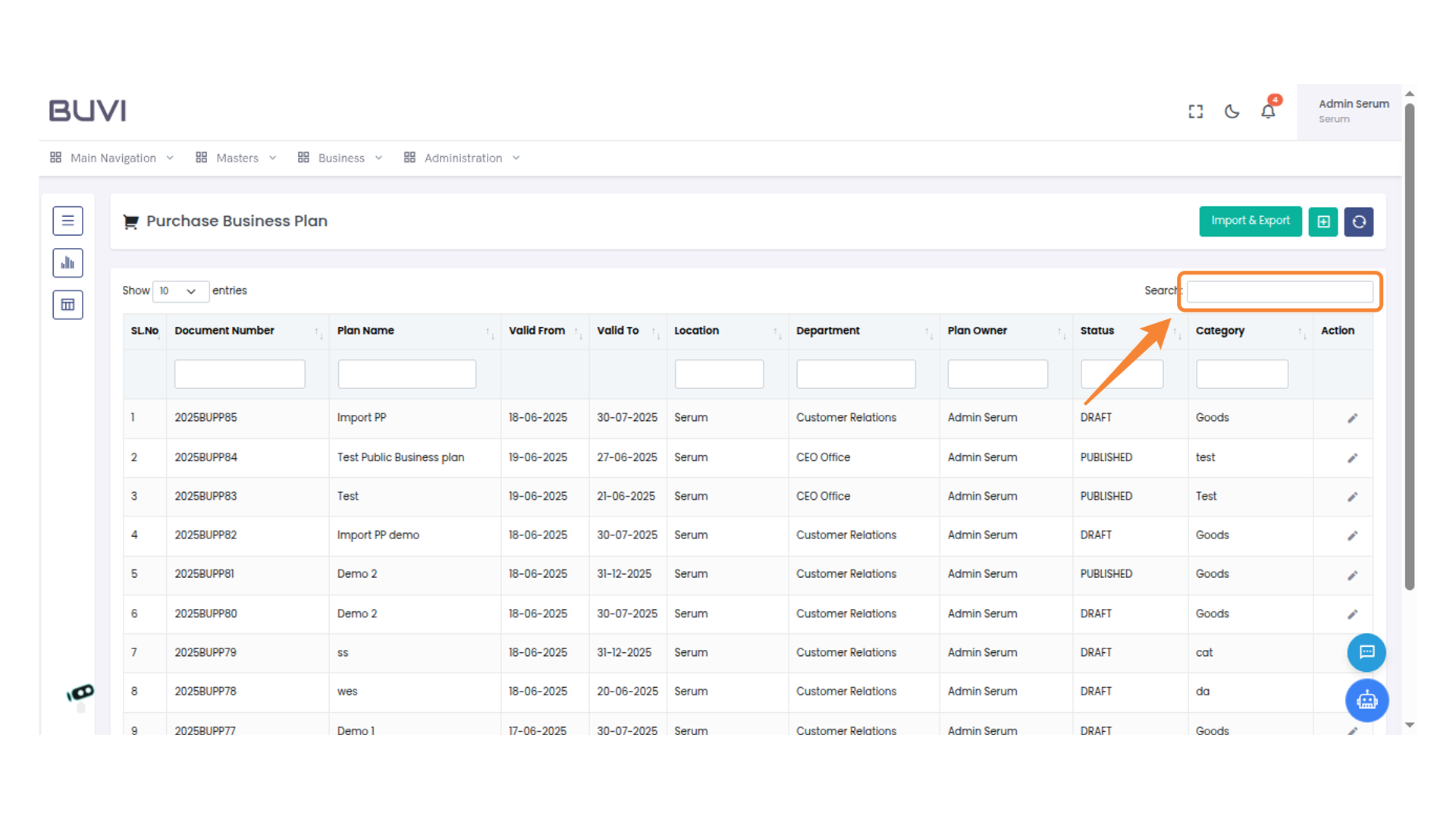
10. Utilize the Search Box
search for Business plan
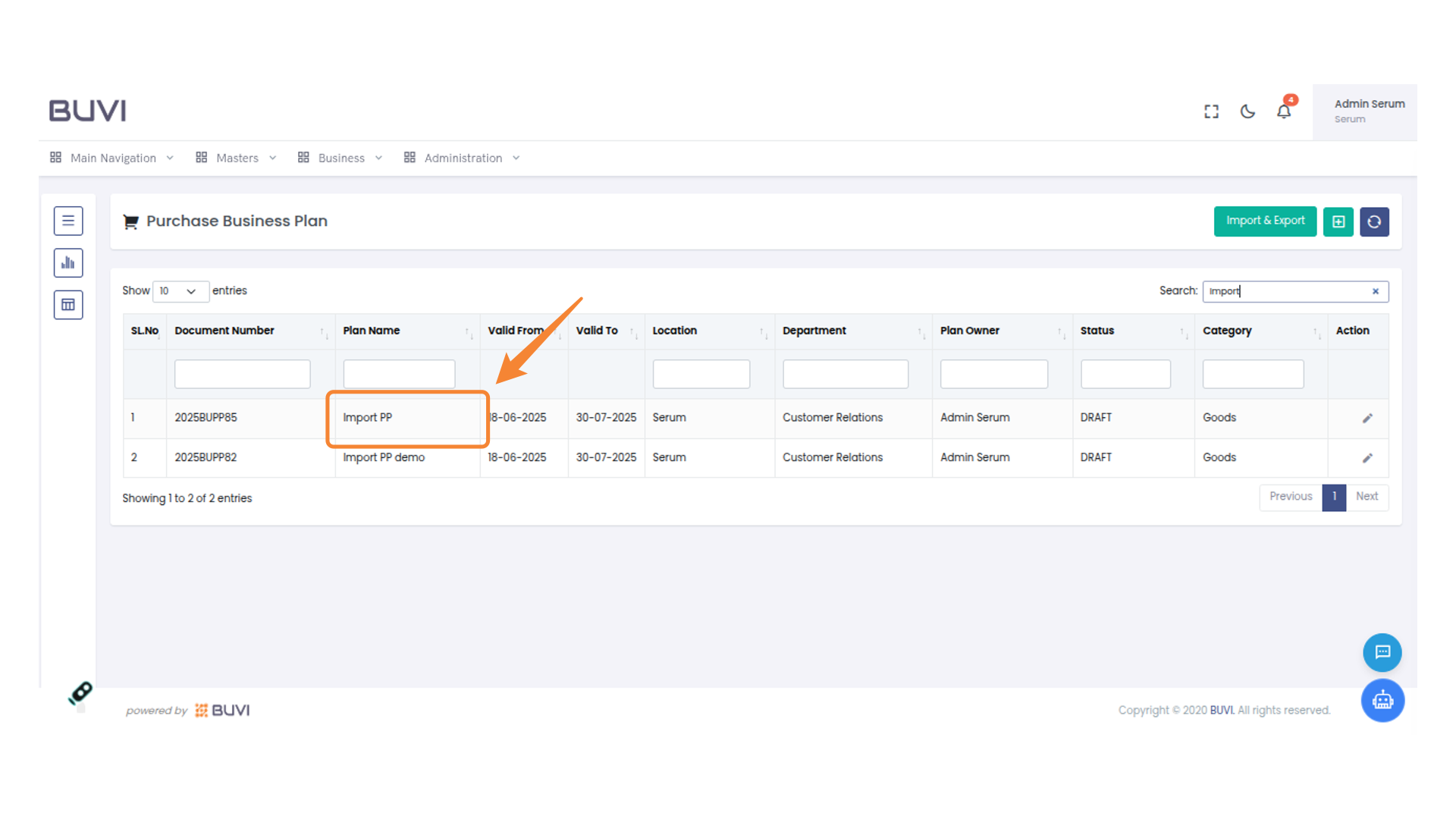
11. Import Business Plan Selection
Select 'Import PP' as the Plan Name for document number 2025BUPP85.
12. Edit an Entry
Click the pencil icon to edit the selected business plan entry.

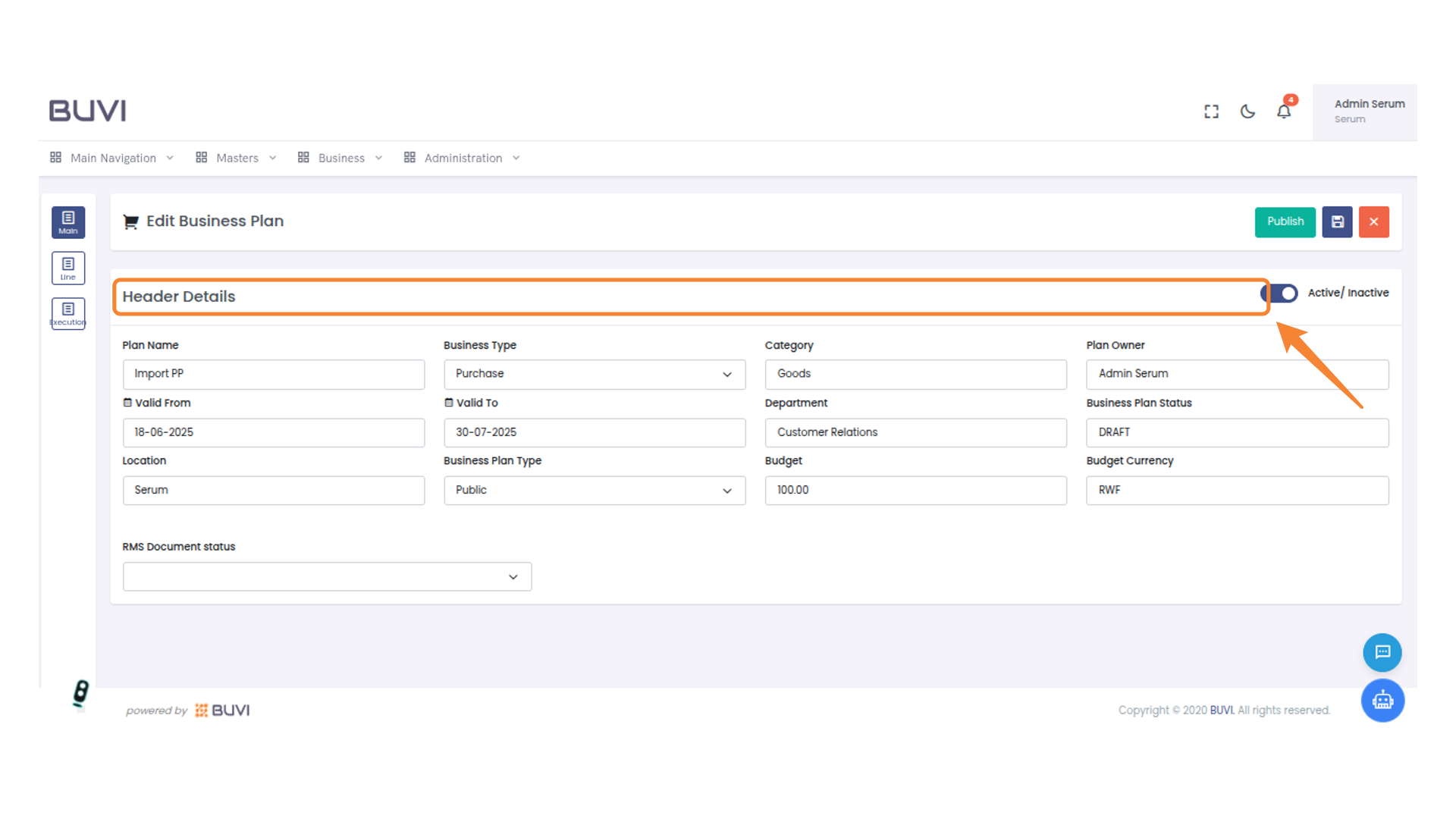
13. Verify Imported details for header
Verify Imported details for header
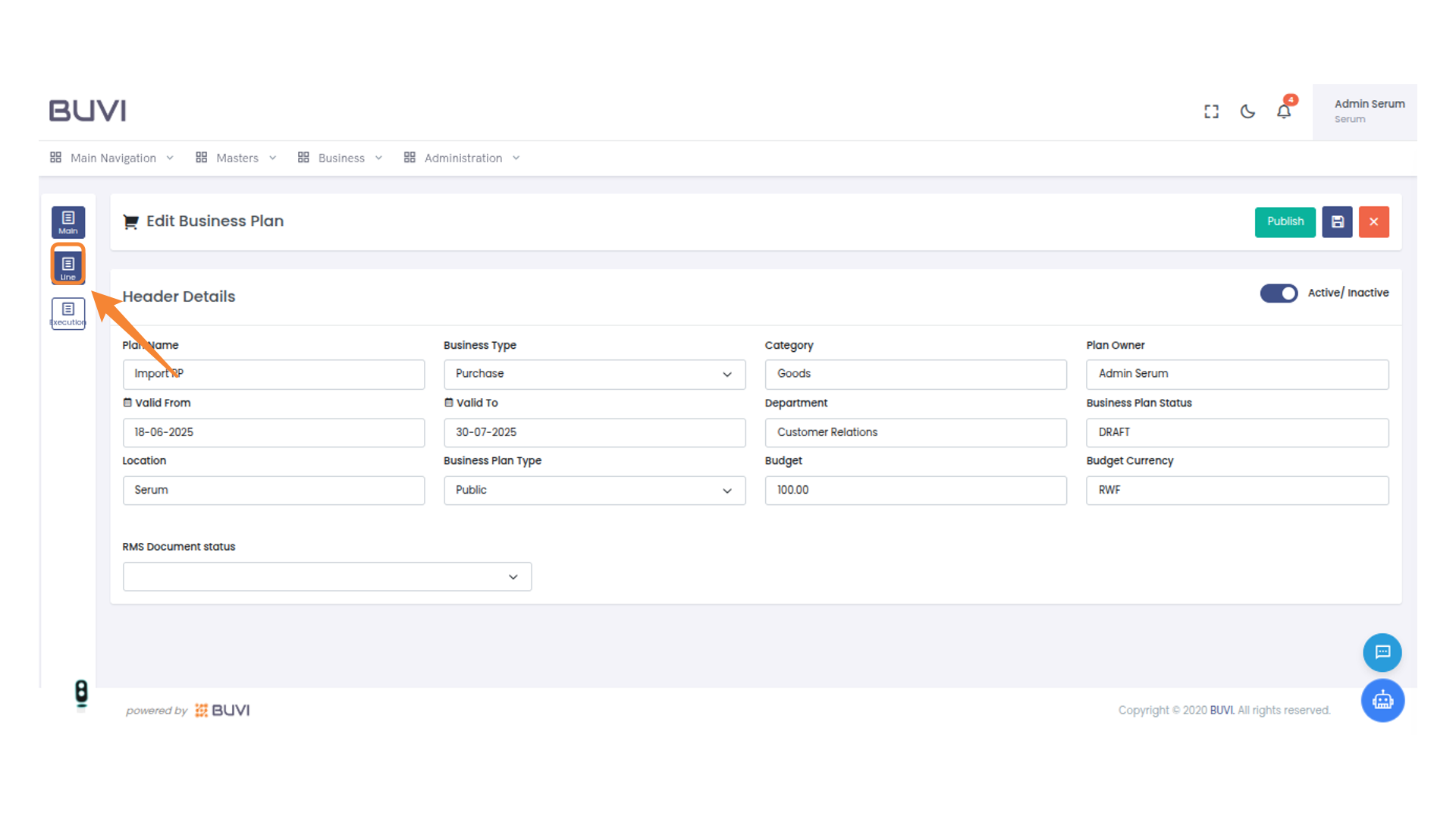
14. Select Line Tab
Click on the 'Line' tab to view and edit the details related to this section of the business plan.
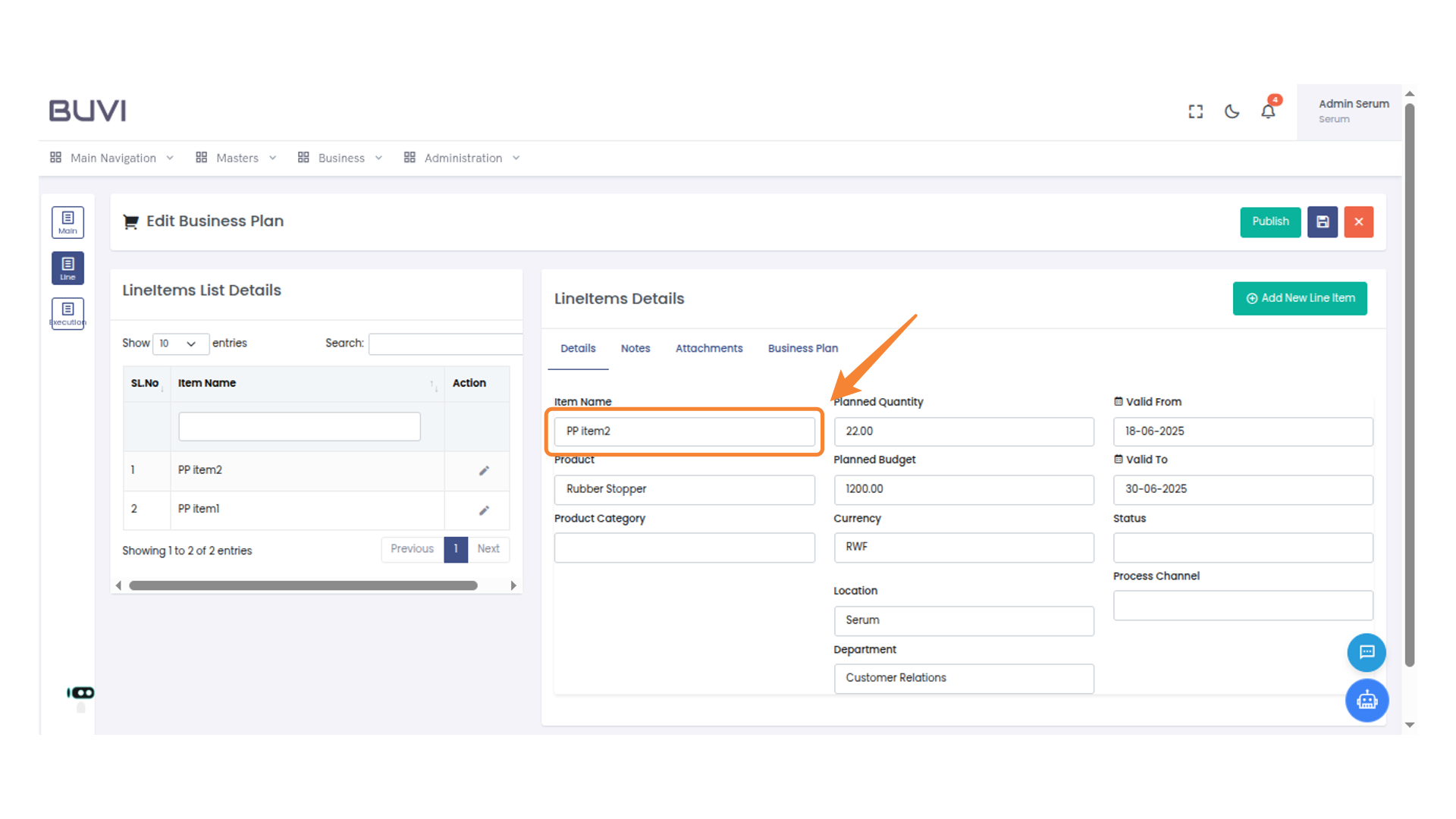
15. Edit Item Action
Click the pencil icon to edit the selected line item.

16. Verify Line item details
Verify Line item details
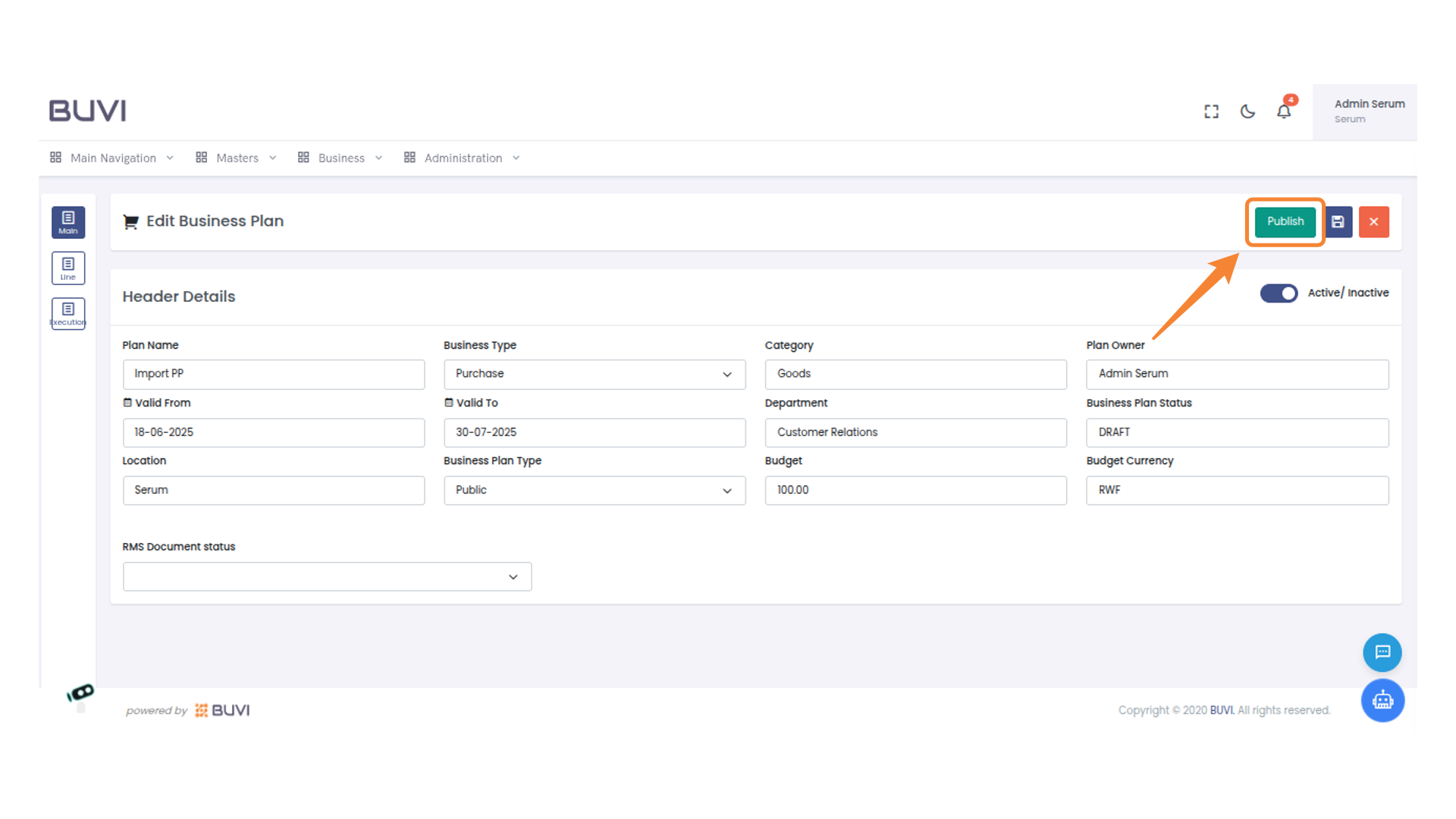
17. Publish the Business Plan
Click the 'Publish' button to finalize and make the business plan active.
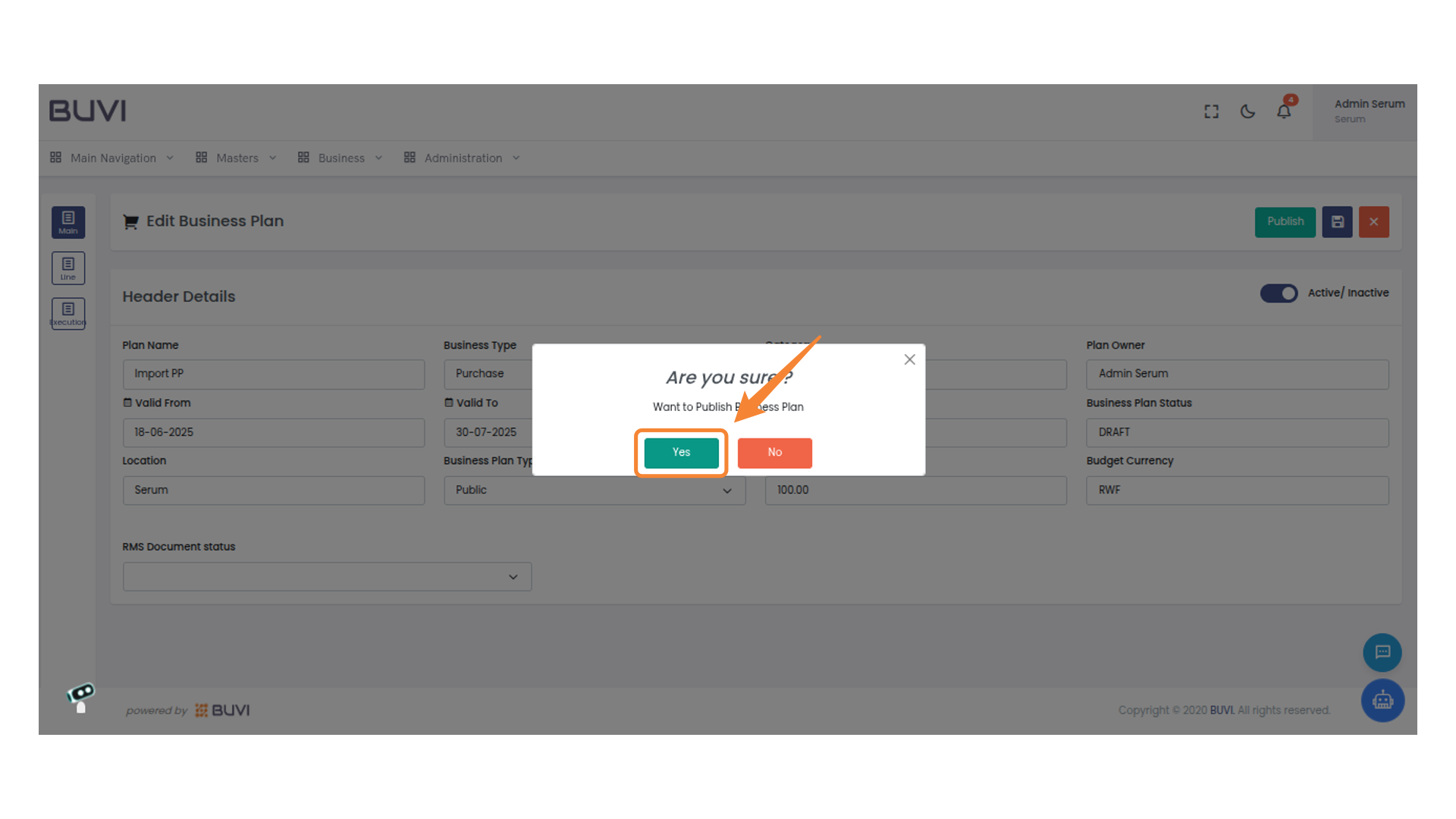
18. Confirm Publication of Business Plan
Click 'Yes' to proceed with publishing the business plan.
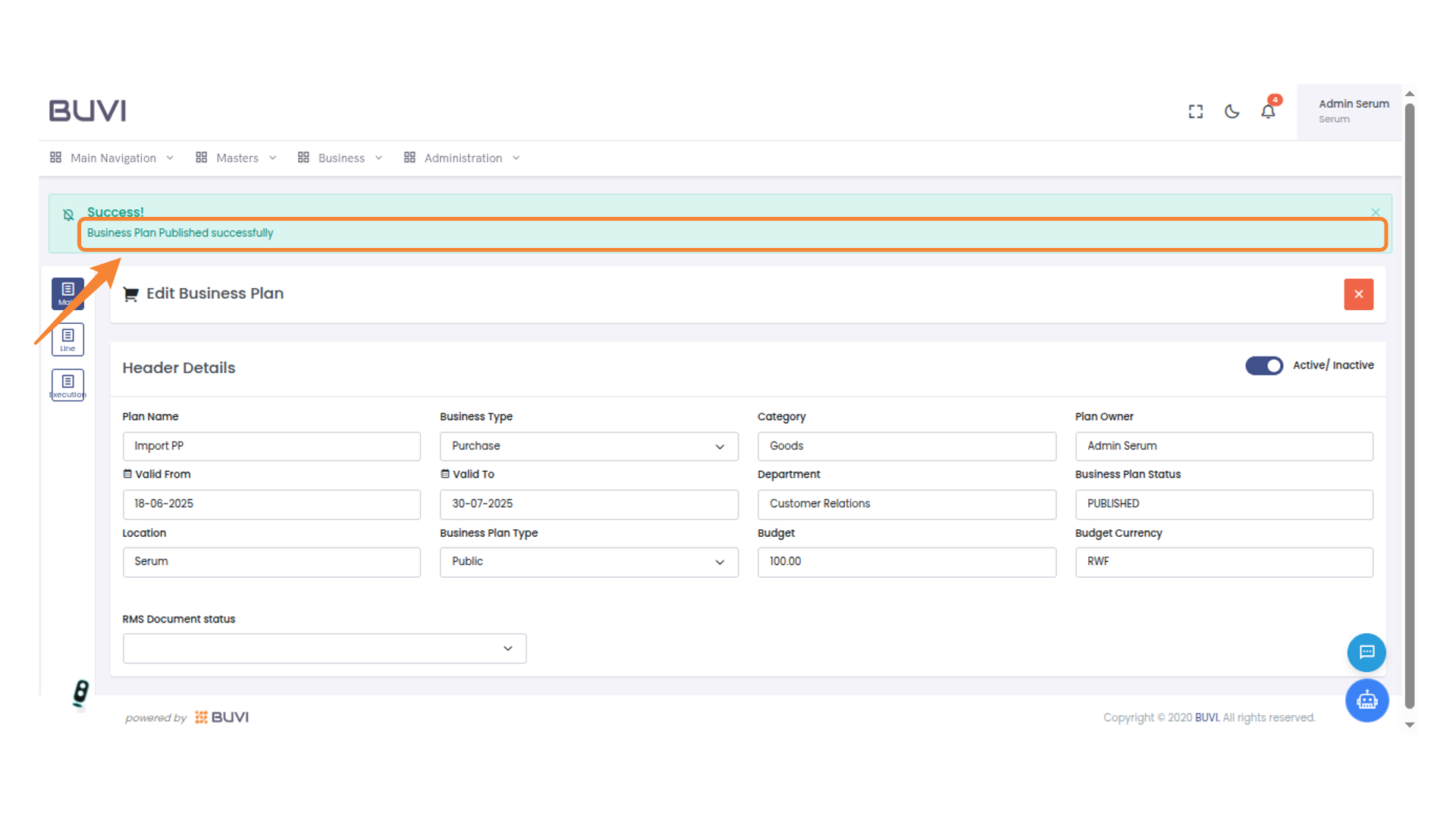
19. Business Plan Publication Success
Acknowledge the message indicating that your business plan has been successfully published.